Show a Map
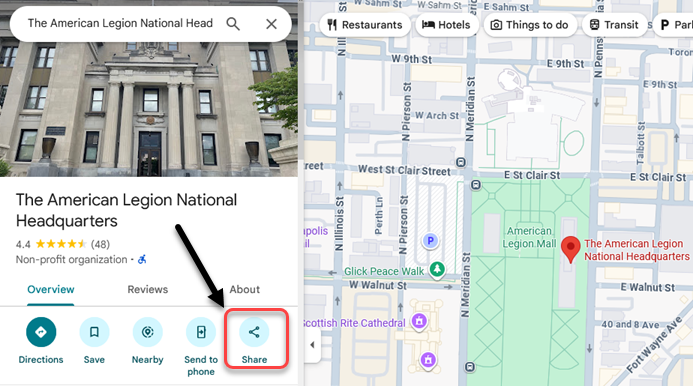
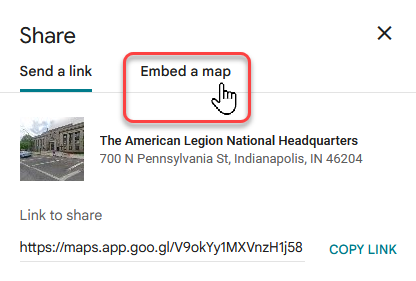
Many sites like to show a map from Google Maps on their website. Showing a map is something you can also do on your Legionsite. Once you have used Google Maps to find a location, locate the Share link provided by the service. (Note: While the MapQuest service will also provide a "Share" link to their map, they do not provide the same sort of embedding feature like Google Maps.)
Google Maps Interface
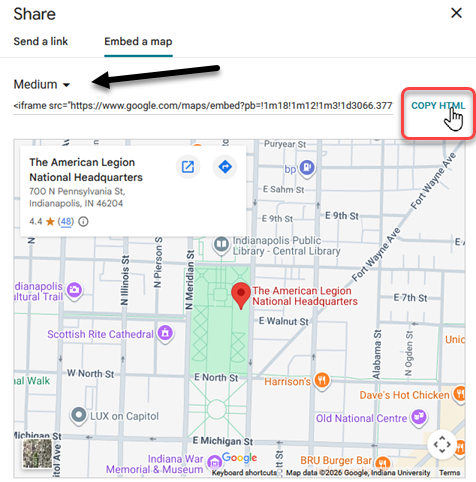

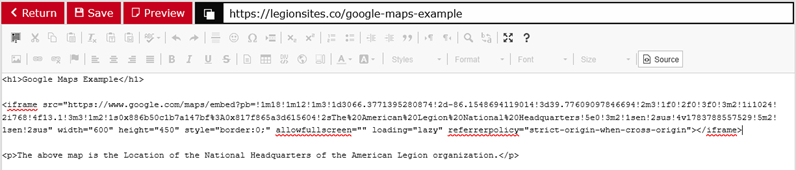
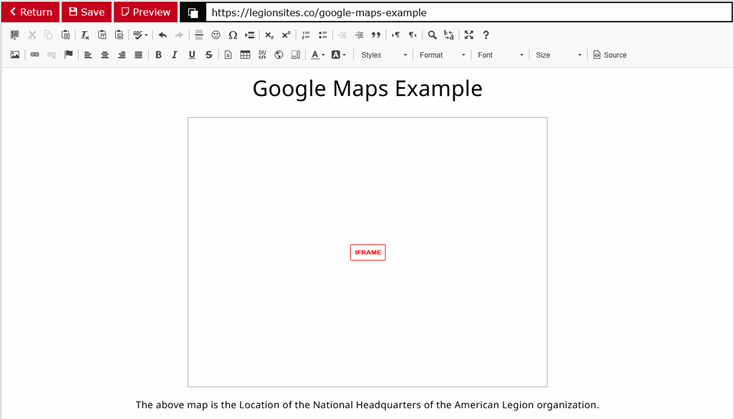
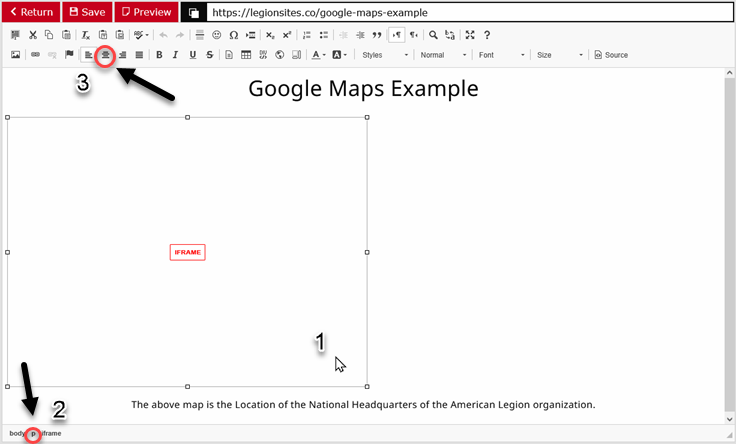
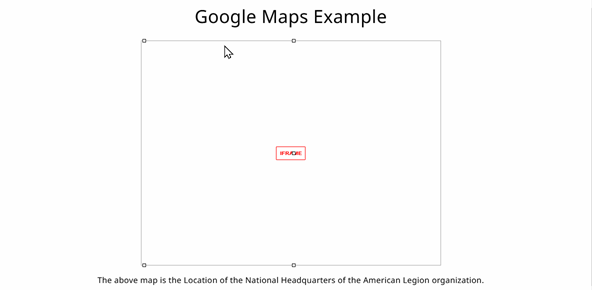
In the Page Editor the map is not shown, but on your page (below) it will be seen.
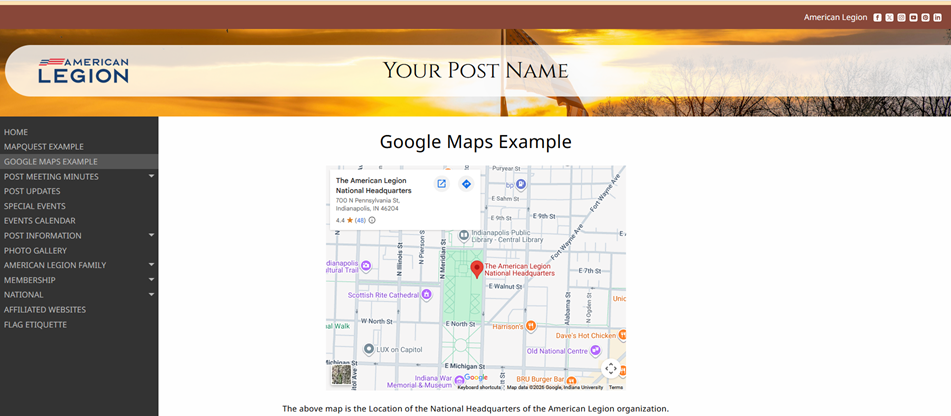
Note, if map is not centered on your page, return to the Page Editor. The IFrame exists within HTML containers which are not visible, but our indicated by the Elements Path in the lower left corner. First click anywhere within the "Iframe object", then on the "p" in the lower left corner of the Elements Path and then the "Center" alignment icon.